Pop-up blockers are great for avoiding annoying ads, but sometimes you actually need pop-ups to work. Banking sites, school portals, government forms, and download pages often use pop-ups for essential functions. If a site isn’t working properly in Safari, there’s a good chance the pop-up blocker is the culprit.
Here’s how to allow pop-ups in Safari on all your Apple devices, including how to enable them for specific sites only (the safer approach).
Allow Pop-Ups on Safari for Mac
You have two options on Mac: allow pop-ups for all websites (not recommended) or allow them only for specific sites you trust (recommended).
Option 1: Allow Pop-Ups for a Specific Website (Recommended)
This is the safer approach because you only enable pop-ups where you actually need them.
- Open Safari and go to the website that needs pop-ups
- Click Safari in the menu bar, then select Settings (or press
Cmd + ,) - Click the Websites tab at the top
- Select Pop-up Windows from the left sidebar
- Find the website in the “Currently Open Websites” list on the right
- Click the dropdown next to it and select Allow
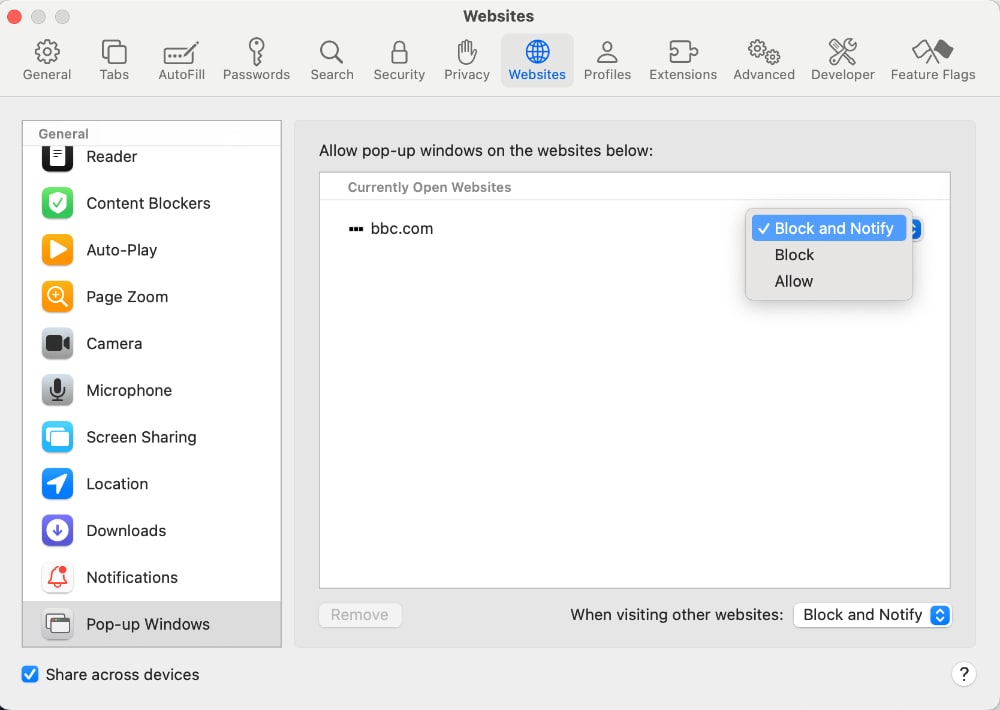
The site will now appear in your “Configured Websites” list, and pop-ups will work only on that specific site.
Option 2: Allow Pop-Ups for All Websites
If you need pop-ups enabled everywhere (not recommended for security reasons):
- Open Safari
- Click Safari in the menu bar → Settings
- Go to the Websites tab
- Select Pop-up Windows from the sidebar
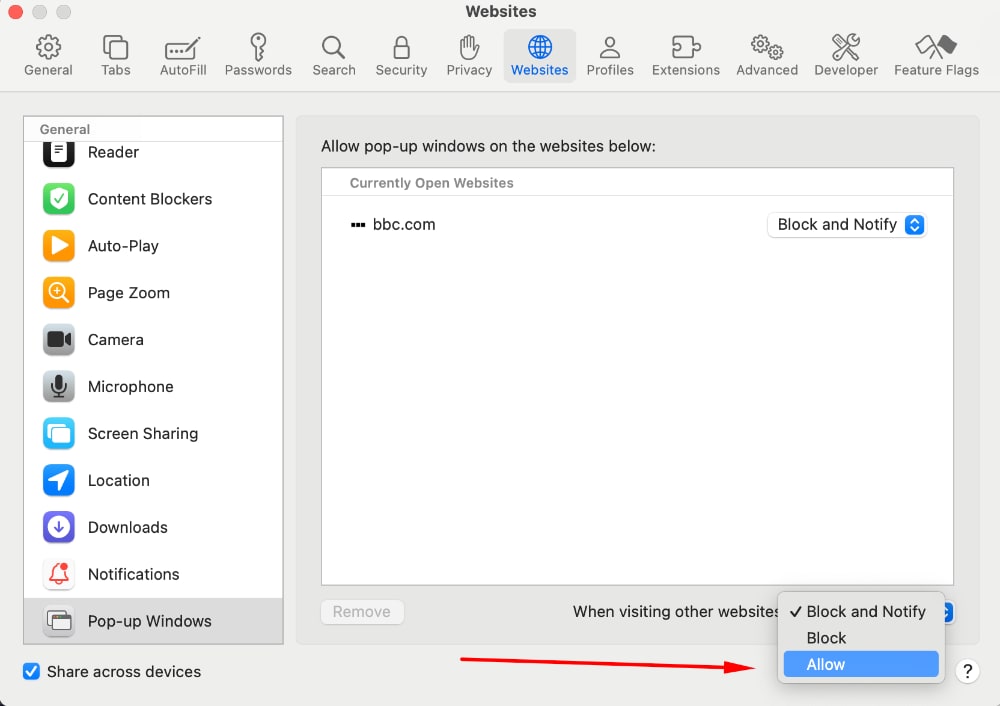
- At the bottom, find “When visiting other websites”
- Change the dropdown from “Block and Notify” to Allow
Quick Method: Allow Pop-Up When Blocked
When Safari blocks a pop-up, you’ll see a notification in the address bar. Here’s the quick way to allow it:
- Look for the small notification in Safari’s Smart Search field saying a pop-up was blocked
- Click on it to see the option to allow pop-ups from that site
- Select Allow to enable pop-ups for that specific site

Allow Pop-Ups on Safari for iPhone and iPad
Safari on iOS and iPadOS has a simpler, all-or-nothing setting for pop-ups.
- Open the Settings app on your iPhone or iPad
- Scroll down and tap Apps
- Select Safari
- Scroll to the “General” section
- Find Block Pop-ups and toggle it OFF (the switch should be gray, not green)
When the toggle is gray/off, pop-ups are allowed. When it’s green/on, pop-ups are blocked.
Note: Unlike Mac, Safari on iPhone and iPad doesn’t have per-site pop-up settings. It’s either all blocked or all allowed. For security, turn the blocker back on after you’re done with the site that needed pop-ups.
How to Block Pop-Ups Again
Once you’ve finished using the site that required pop-ups, it’s smart to re-enable blocking.
On Mac (for a specific site):
- Go to Safari → Settings → Websites → Pop-up Windows
- Find the site in “Configured Websites”
- Change the dropdown to Block or click the site and hit Remove to delete the exception
On Mac (for all sites):
- Go to Safari → Settings → Websites → Pop-up Windows
- Change “When visiting other websites” back to Block and Notify
On iPhone/iPad:
- Go to Settings → Apps → Safari
- Toggle Block Pop-ups back ON (green)
Why Are Pop-Ups Blocked by Default?
Safari blocks pop-ups by default because they’re commonly used for unwanted advertisements, phishing attempts and scams, malware distribution, and annoying subscription prompts.
However, legitimate websites also use pop-ups for login windows and authentication, document downloads (PDFs, receipts), payment processing windows, chat support widgets, and form submissions and confirmations.
The key is to only allow pop-ups on sites you trust, like your bank, employer, or school portal.
Troubleshooting: Pop-Ups Still Not Working
If pop-ups still don’t work after enabling them:
Check content blockers: If you have extensions like AdBlock or 1Blocker installed, they may block pop-ups independently of Safari’s settings. Temporarily disable them to test.
Try a private window: Open a Private Browsing window (Cmd + Shift + N on Mac) and test the site. Private windows disable some extensions by default.
Clear website data: Go to Safari → Settings → Privacy → Manage Website Data, find the site, and remove its data. Then reload the page.
Check for browser updates: Make sure Safari is up to date. On Mac, this means updating macOS through System Settings → General → Software Update.
Disable other security software: Some antivirus or security apps include their own pop-up blockers.
Pop-Up Settings Cheat Sheet
| Device | Allow for One Site | Allow for All Sites |
|---|---|---|
| Mac | Safari → Settings → Websites → Pop-up Windows → Select site → Allow | Safari → Settings → Websites → Pop-up Windows → “When visiting other websites” → Allow |
| iPhone/iPad | Not available | Settings → Apps → Safari → Block Pop-ups → OFF |
Final Thoughts
Allowing pop-ups in Safari takes just a few clicks, but remember to use the per-site option on Mac whenever possible. This keeps you protected from unwanted pop-ups on other sites while letting essential ones through where you need them.
If you’re enabling pop-ups for a one-time task like downloading a document or completing a form, consider turning the blocker back on once you’re done. It’s a small habit that helps keep your browsing experience clean and secure.