
Open Gmail, click the gear icon, select “See all settings,” scroll to the “Signature” section, click “Create new,” name your signature, and type your information in the text editor. Your signature appears automatically at the bottom of new emails once you click “Save Changes.”
Gmail supports multiple signatures, which means you can create different versions for work emails, personal messages, or specific projects. You can also add images, links, and formatted text to make your signature look professional without needing design skills or third-party tools.
Adding a Signature in Gmail (Desktop)
Step 1: Access Gmail Settings
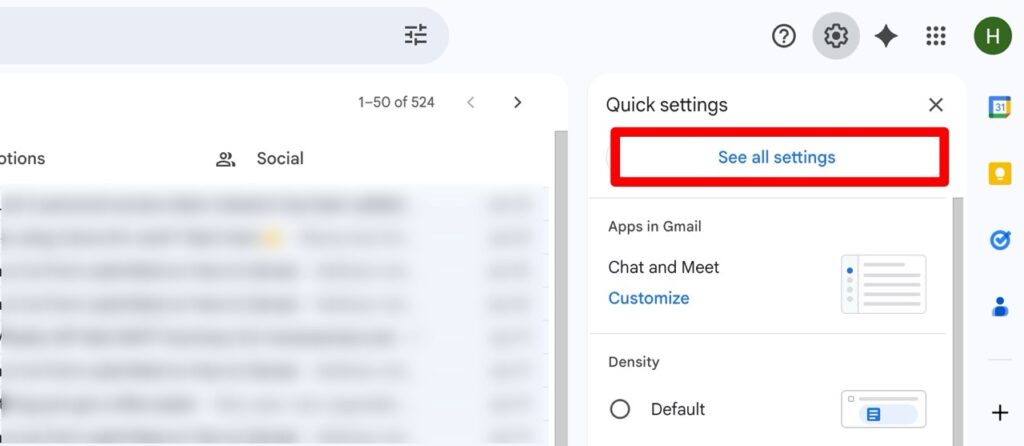
Click the gear icon in the upper right corner of Gmail. From the quick settings panel that appears, click “See all settings” at the top.
Step 2: Navigate to the Signature Section
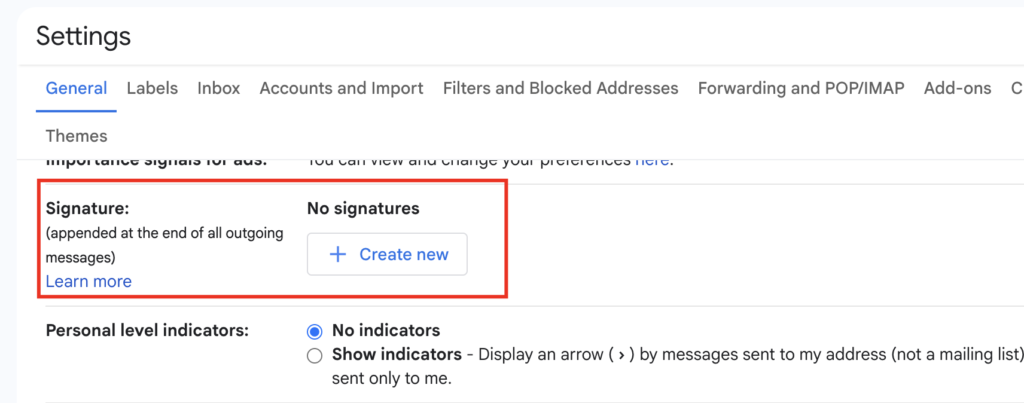
You’ll land on the “General” tab by default. Scroll down until you find the “Signature” section, located above “Vacation responder.”
Step 3: Create a New Signature
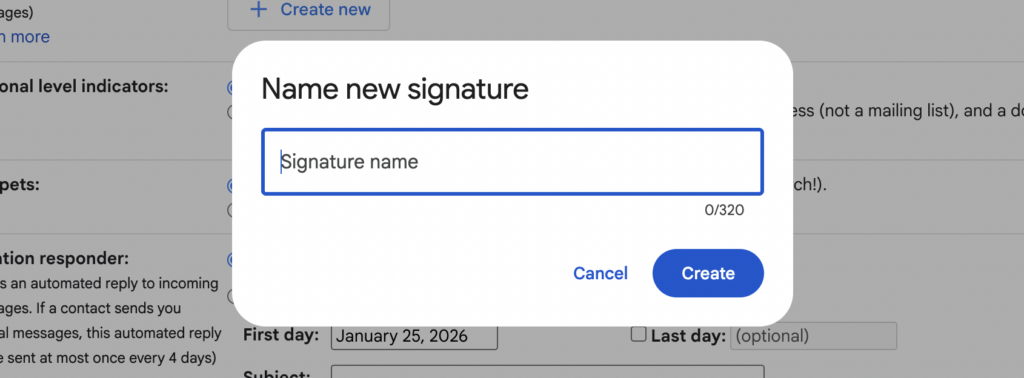
Click the “+ Create new” button. A popup appears asking you to name your signature. Use a descriptive name like “Work Email” or “Personal” so you can distinguish between multiple signatures later.
Step 4: Design Your Signature
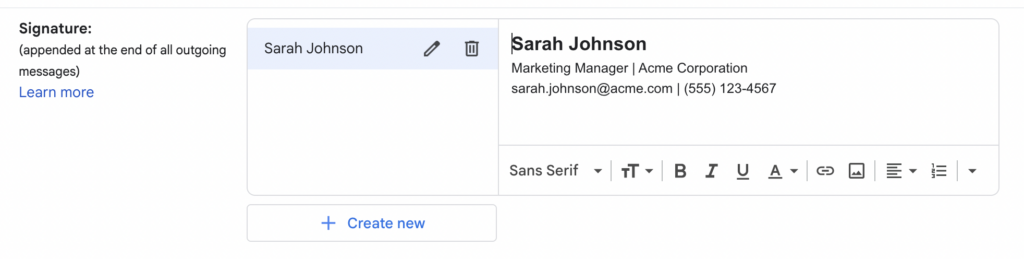
Type your signature content in the text editor. The formatting toolbar includes options for font styles, bold and italic text, text color, bullet points, links, and images.
Step 5: Set Default Behavior
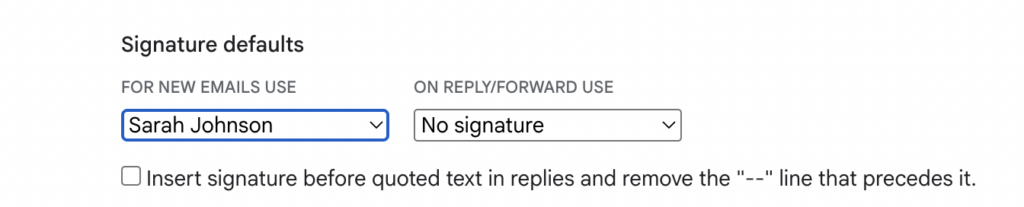
Below your signature editor, you’ll see two dropdown menus:
- “For new emails use:” Select which signature appears when composing new messages
- “On reply/forward use:” Choose whether to include your signature in replies (many people select “No signature” here to avoid cluttering email threads)
Step 6: Save Your Changes
Scroll to the bottom of the settings page and click “Save Changes.” Your signature is now active and will appear in new emails.
Adding a Signature in Gmail Mobile App
The Gmail mobile app has a separate signature setting that only applies to emails sent from your phone.
Step 1: Open the Gmail app and tap the menu icon (three horizontal lines) in the upper left
Step 2: Scroll down and tap “Settings”
Step 3: Select your email account
Step 4: Tap “Mobile Signature”
Step 5: Type your signature text and tap “OK”
The mobile app doesn’t support images, custom fonts, colors, or clickable links. If you need a rich signature with formatting, set it up on desktop. The desktop signature will appear on emails sent from any device, while the mobile signature only applies when composing directly in the app.
What Makes a Good Email Signature
Essential Elements
- Your Name: Full name as you want to be addressed professionally
- Job Title and Company: Helps recipients understand your role
- Contact Information: Phone number and company address if relevant
- Professional Links: LinkedIn profile or company website
Optional Elements
- Professional Photo: A small headshot under 200×200 pixels
- Social Media Icons: LinkedIn, Twitter/X if work-relevant
- Legal Disclaimers: Required in finance, healthcare, and legal industries
- Calendar Link: Calendly or similar scheduling links for client-facing roles
- Company Logo: Adds brand consistency but increases email file size
What to Avoid
- Inspirational Quotes: Feel dated in professional contexts
- Too Many Colors: Stick to 1-2 colors matching your company branding
- Large Images: Keep total signature size under 100KB
- Multiple Phone Numbers: List only the number you actually answer
Adding Images and Logos
To insert an image in your signature:
- Place your cursor where you want the image
- Click the image icon in the formatting toolbar (small mountain/photo icon)
- Choose your upload method: Upload from computer, paste a URL, select from Google Photos, or choose from Google Drive
- Resize the image by clicking it and dragging the corner handles
Image tips: Keep files under 50KB, use PNG format for logos with transparent backgrounds, and test how your signature looks on mobile devices.
To make an image clickable, click the image in your signature editor, then click the link icon in the toolbar and paste the URL you want it to link to.
Creating Multiple Signatures
You might need different signatures for internal company emails, external client communication, personal use, or project-specific work.
To create additional signatures, return to Settings → General → Signature and click “+ Create new” again. Name each signature clearly (like “Client Communications” or “Internal Team”) so you can quickly find the right one.
To switch signatures when composing an email: Click the three-dot menu icon (⋮) at the bottom of the compose window, hover over “Insert signature,” and select the one you want to use.
Professional Signature Examples
Minimal Professional
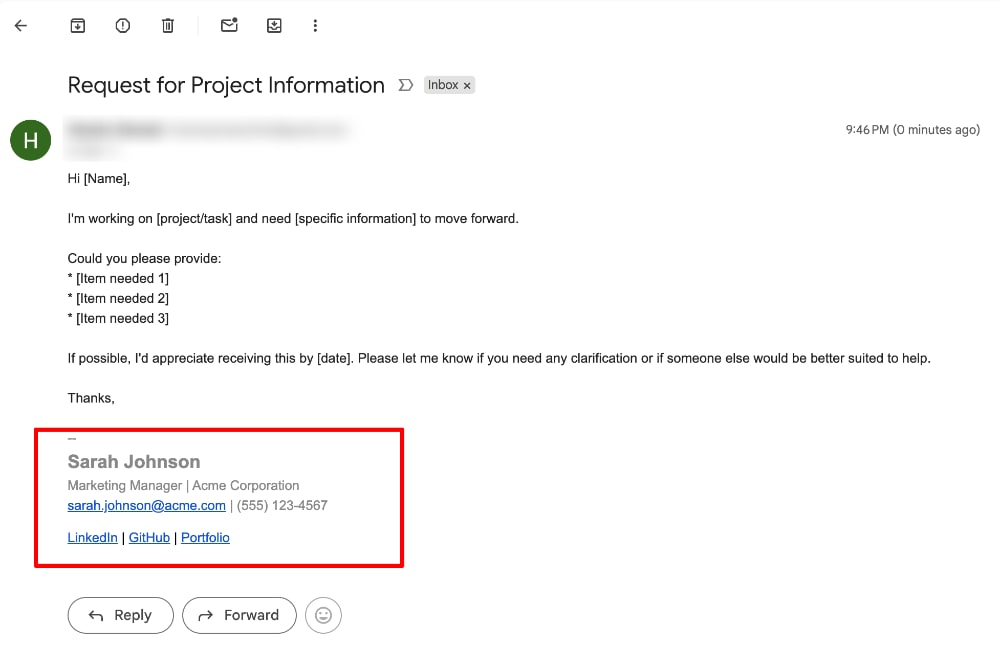
Sarah Johnson
Marketing Manager | Acme Corporation
sarah.johnson@acme.com | (555) 123-4567
With Links
David Chen
Senior Software Engineer
TechStart Inc.
david.chen@techstart.com | (555) 987-6543
LinkedIn | GitHub | Portfolio
Executive with Photo
[Photo] Jennifer Rodriguez
        Chief Operations Officer
        GlobalBiz Solutions
        (555) 456-7890
        www.globalbiz.com
        Schedule a meeting
Freelancer/Consultant
Marcus Williams
UX Design Consultant
marcus@williamsconsulting.com | (555) 234-5678
See my work | Book a consultation
Troubleshooting Common Issues
Signature doesn’t appear in new emails: Check Settings → General → Signature and verify you’ve selected a signature in the “For new emails use:” dropdown. Also confirm you clicked “Save Changes.”
Formatting looks different when received: Different email clients (Outlook, Yahoo, Apple Mail) interpret formatting differently. Stick to basic formatting like bold and italic for maximum compatibility.
Images don’t show up for recipients: This happens when images are uploaded directly rather than linked via URL. Re-upload using a URL from Google Drive, and keep file sizes under 50KB.
Signature appears in wrong position: Gmail places signatures at the end of your reply text. If it appears above your message, you’re typing below the signature line. Place your cursor above the “– ” separator before typing.
Too much white space: Click in your signature editor where you see blank lines and delete them. Extra line breaks often come from copying signatures from other sources.
Can’t delete old signatures: In the Signature section, click the trash icon next to the signature name. You must have at least one signature set as default, so create a new one first if needed.
Google Workspace Considerations
If you use Gmail through Google Workspace (business accounts), your administrator may have set signature restrictions. Some organizations lock certain signature elements to maintain brand consistency.
Check with your IT department if you can’t edit your signature or if certain options are grayed out. You might be able to customize some fields while core branding elements remain fixed.
Frequently Asked Questions
Can I use different signatures for different email addresses in Gmail?
Yes. If you have multiple email accounts connected to Gmail, go to Settings → General → Signature, and you’ll see separate signature options for each email address.
Does my signature appear on emails I send from my phone?
Your desktop signature appears on all emails regardless of device. The mobile signature setting only applies when you haven’t set up a desktop signature or when composing directly in the mobile app.
How do I add social media icons to my signature?
Download small PNG icons for each platform, insert them as images in your signature, and add your profile URL as a link to each icon. Alternatively, use text links like “LinkedIn | Twitter” which load faster.
What’s the ideal signature length?
Keep it to 3-5 lines of essential information. Longer signatures get ignored and can trigger spam filters. Include only what recipients actually need to contact you.
Can I schedule different signatures for different times?
Gmail doesn’t support scheduled signatures natively. You’d need to manually switch signatures or use a third-party tool like WiseStamp.